
Play as a human
Choose a company, make a plan, and see what happens as the business moves forward.
You can play worldseq in the dashboard. Choose what the company should do, commit time and money, then advance the clock. The simulator carries out the work and produces the next reports, customer responses, and bills.
You do not need an agent, a model subscription, or an SDK for this walkthrough. First follow Getting started to start your local installation, then open http://127.0.0.1:4311.
Keep the play tab open. Interactive controls are kept in the open page where you start the challenge. Refreshing the page loses those controls and opens the saved run for reading; there is no resume button yet. Your saved decisions and results remain in the local server’s history. The dashboard’s Refresh report button updates observations without reloading the page.
Choose a business
Open Companies and choose a company that interests you. Its About page describes the business, customers, operations, and starting finances. Those figures describe the initial setup; a run has its own changing financial reports.
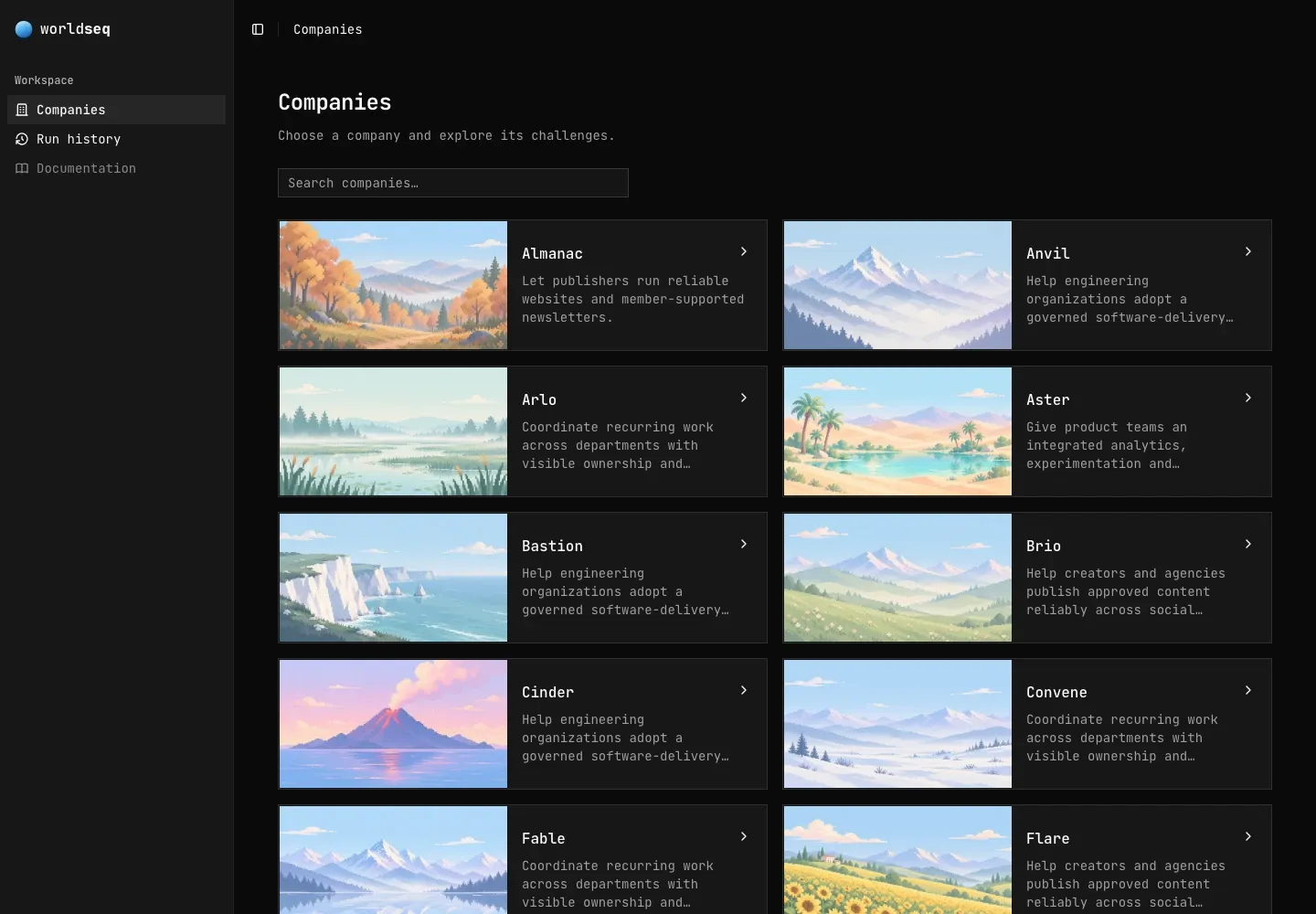
The screenshots follow Riff, a social publishing company. They show a real local development run, with an illustrative plan rather than a recommended solution.
Read the challenge
Choose a challenge from the company’s page. Check About for the objective, Financials for its limits, and Timeline for review points. Riff’s Restore the service this week has a seven-day horizon, making it a short way to learn the controls.
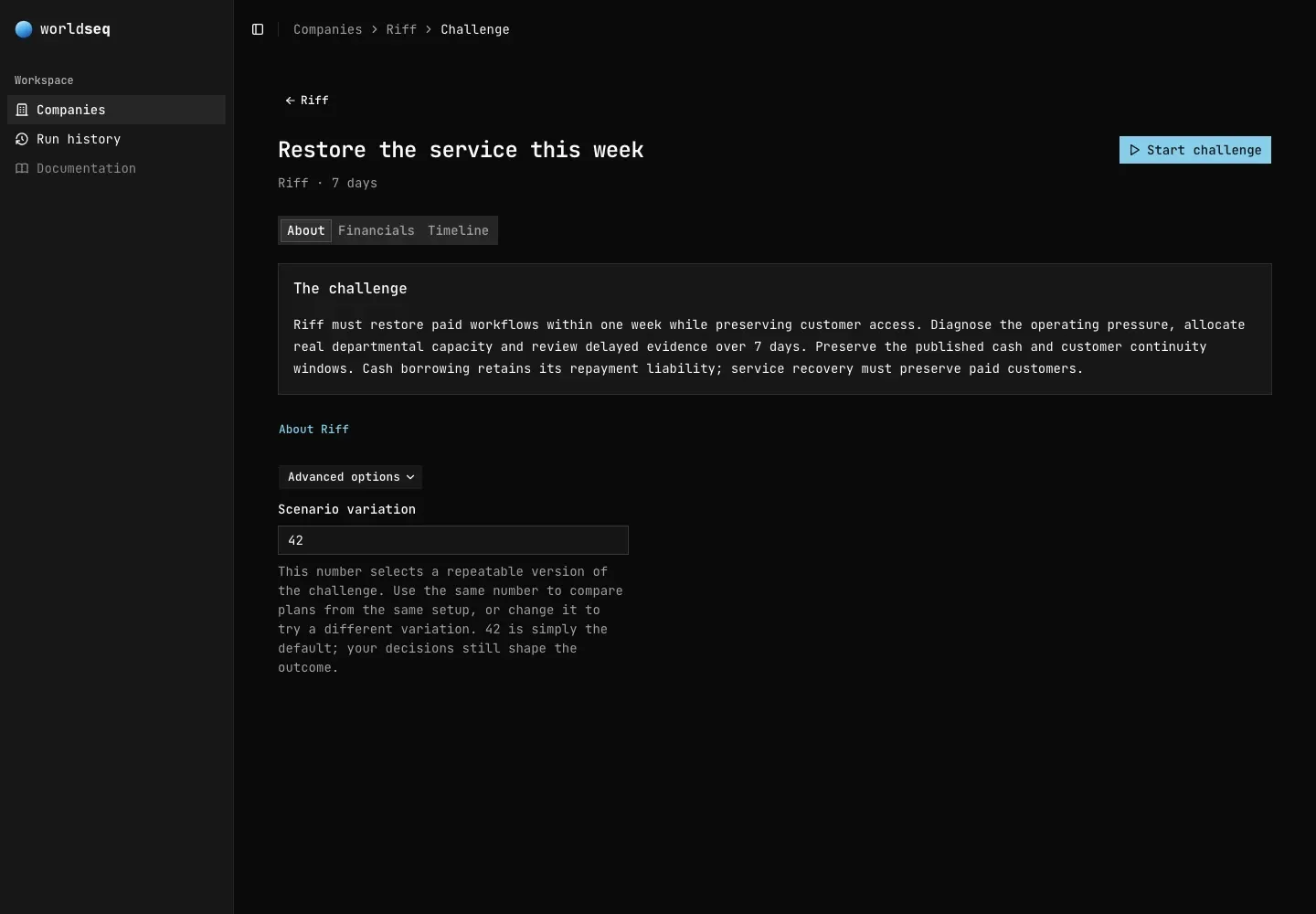
Click Start challenge when you are ready. Under Advanced options, the scenario variation number selects a repeatable setup. Keeping the same number lets you compare plans under the same starting conditions and simulator version. Changing it tries a different variation. 42 is simply the default.
These are development attempts. A protected evaluation instance has an operator-assigned realization that the player cannot reset or reseed.
Make a plan
Open Make a plan, then Add work to plan. Choose from the operations this company offers, allocate hours and a spending limit, and add the work. Use dependencies when something must finish before another commitment can begin.
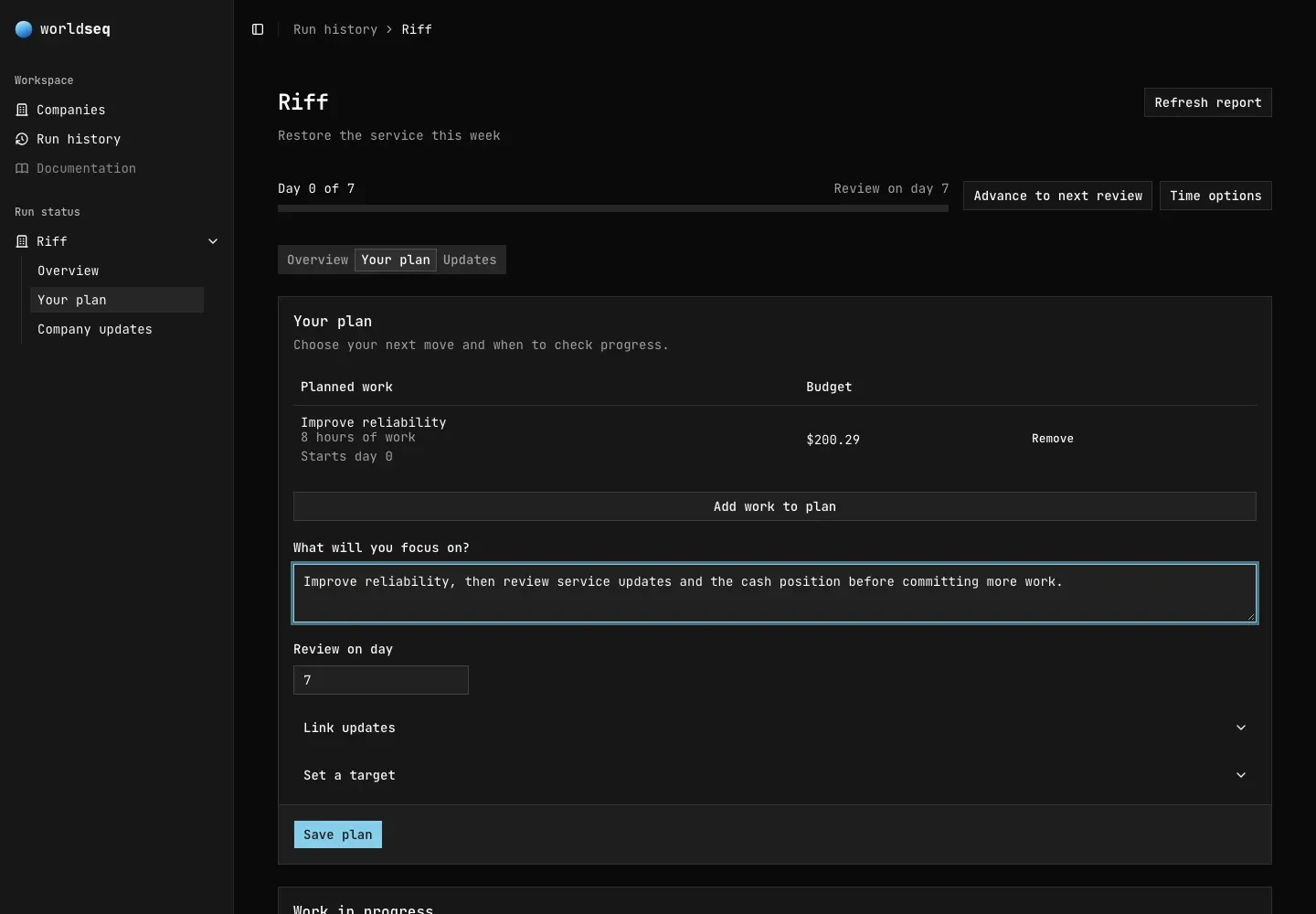
Write what you intend to focus on, choose your next review, and click Save plan. Adding work to the draft does not commit it until you save. The saved work consumes the company’s actual modeled capacity and budget as it executes.
Your explanation is useful context for reviewing a run. Persuasive wording does not create resources, complete work, or earn a score. The outcome depends on the accepted decisions and the business rules.
Advance, inspect, and revise
Click Advance to next review. The company may stop sooner when new information needs attention. Open Updates, check what changed, then return to Your plan to revise the remaining work.
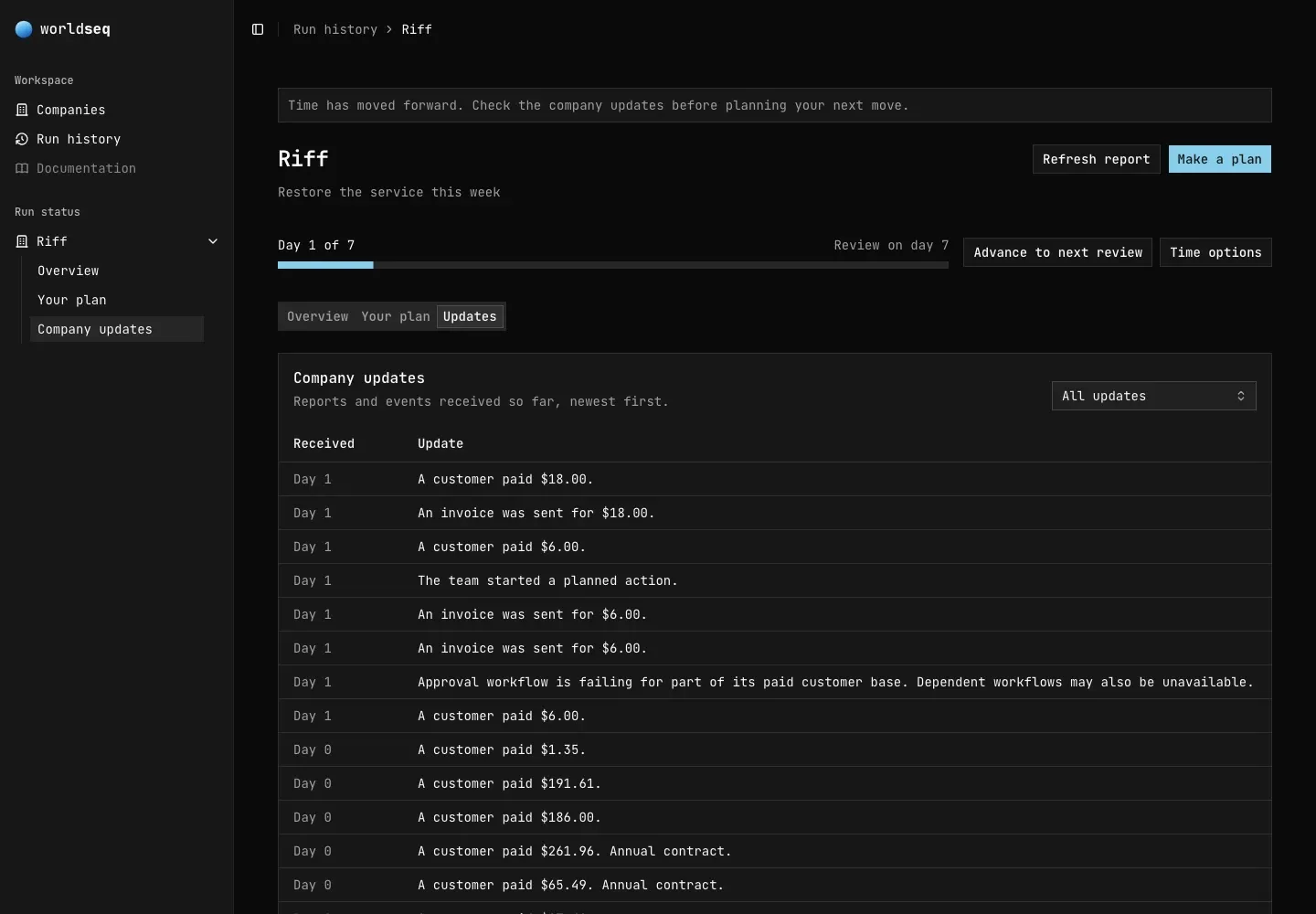
A report can arrive after the period it describes. Compare its effective date with the current day before treating it as a current measurement. Work, renewals, payments, and other events keep progressing while you wait.
Time options lets you choose a particular day. End challenge early records an unfinished attempt; it is not a way to satisfy the deadline without running the rest of the business.
Some tasks also show Your assessment below the plan. Submit required conclusions before the displayed deadline, using the evidence available to you. Confidence estimates and required conclusions serve different purposes. A strong financial outcome cannot compensate for a missing mandatory answer. See Assessment requirements.
Read the result
At the end of the horizon, click See results. The result shows the measured outcome and whether each challenge rule was met.
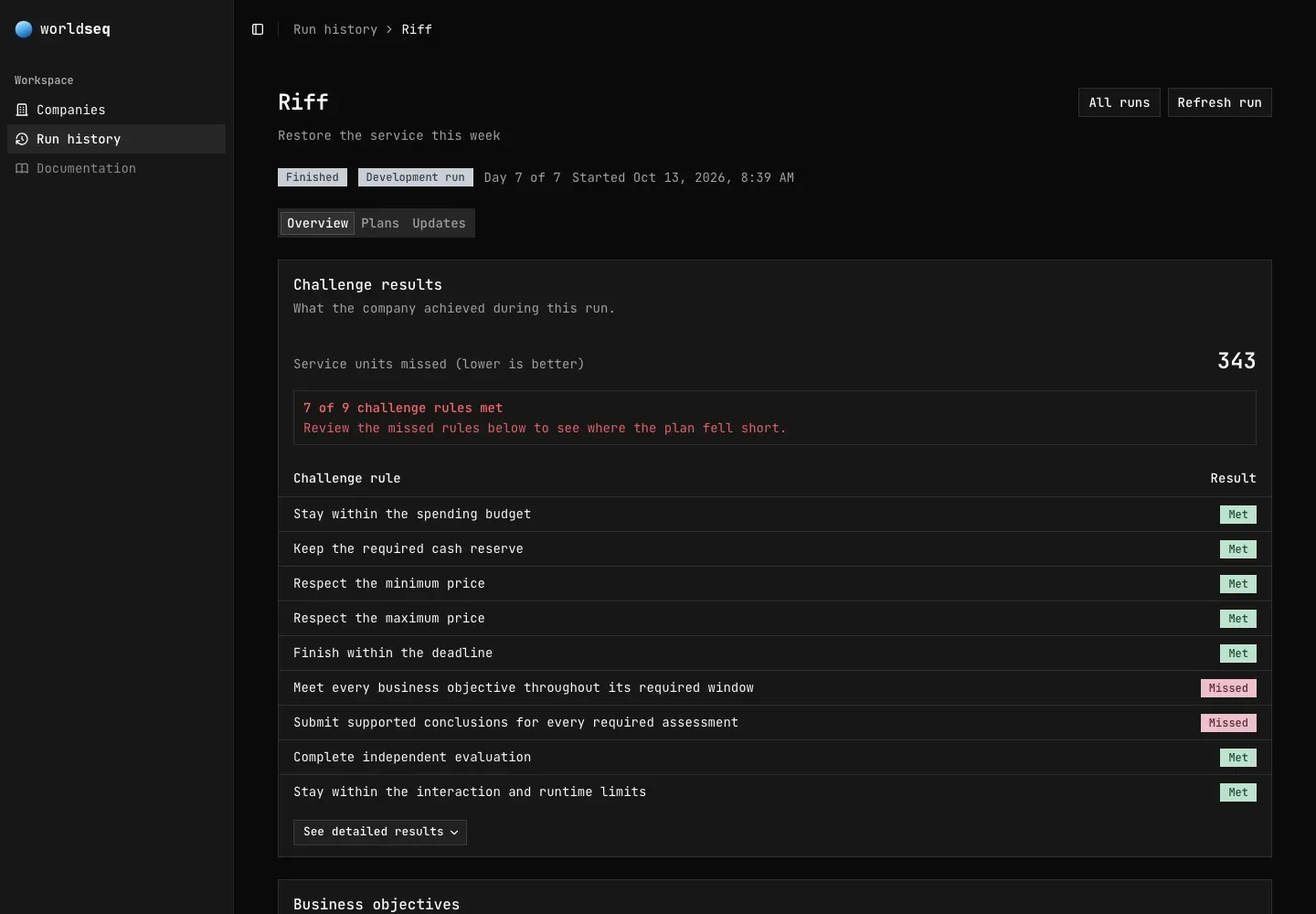
- All challenge rules met means the checked run satisfied the declared requirements.
- Missed identifies a requirement this plan did not satisfy. Review the rule and the saved history before trying another plan.
- Evaluation incomplete means independent verification did not finish successfully. The outcome remains unscored; this is not a player failure.
You can inspect past attempts under Run history. Its filters separate running and completed work, while the sidebar shows up to 15 active or recent runs. A completed development attempt is useful practice, but it is not automatically a certified evaluation.
For more detail, read How results are checked. To connect an agent to the same player tools, continue with the SDK guide.